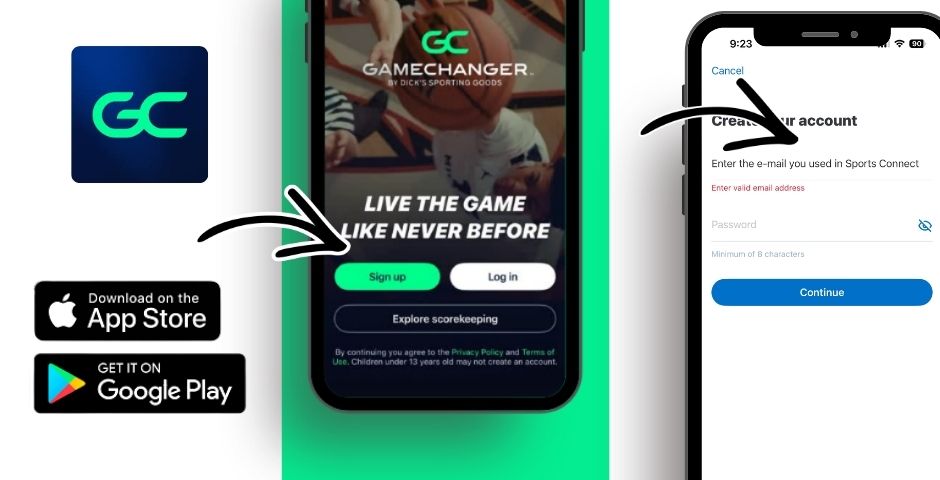
Step 1: Download the Correct App
Download GameChanger (green icon) from:
Apple App Store
Google Play Store
Step 2: Create Your Account
Open the app
Tap Sign Up
Use your e-mail that you used to register your player(s) in Sports Connect.
Verify your email if prompted
Step 3: Accept the Team Invitation
If the league already added you, you may receive:
If you received an email:
Open the invite email
Tap Accept Invite
Log into GameChanger
The team will automatically attach to your account
Step 4: If You Don’t See the Team
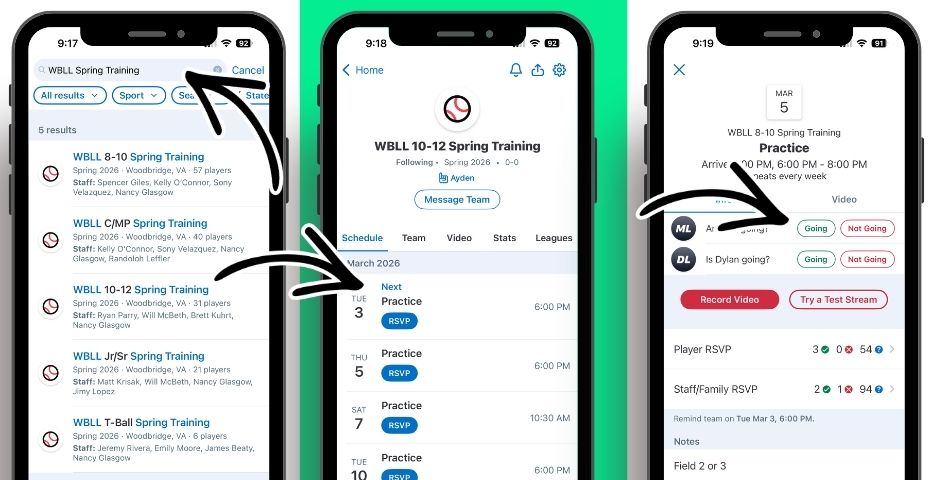
Tap the search 🔍 icon
Search "WBLL Spring Training"
Tap the team that applies to your player.
Tap Follow Team
If you were added to the roster, you may see a prompt to:
Claim Player
Select your child’s name to connect your account.
Important: Your player will be moved from "Spring Training" practice group to their official Spring team after Draft Day once the rosters have been set.
Step 5: Confirm Player Connection
Go to:
Team ? Roster
Make sure:
Step 6: Check the Schedule
Tap:
Schedule
You should see:
You can tap any event to:
Step 7: Turn On Notifications (Very Important)
Go to:
Settings ? Notifications
Turn ON:
? Event reminders
? Game updates
? Chat messages
? Schedule changes
This will ensure you do not miss weather updates or last-minute changes.
Step 8: RSVP to Events
For each game or practice:
Tap the event
Tap RSVP
Select: